

Importing Postman Collections from Azure DevOps and GitHub - Part 1
Yo BC Artisans,
Quick story why I’m writing this.
So I was assigned to a project where there’s a fair bit of API work involved. Actually I didn’t start that project, it was a handover. No API docs, no references, nothing... just the AL project files.
And I thought, okay. now what?
One thing I noticed is that I rarely see anyone talk about this kind of setup or workflow. Usually, if you work on a project with APIs, you have your own Postman collection sitting in your account.
But what happens when multiple devs are working on the same project?
Do we all just build our own Postman collections? Again and again?
I feel like teams can do better here.
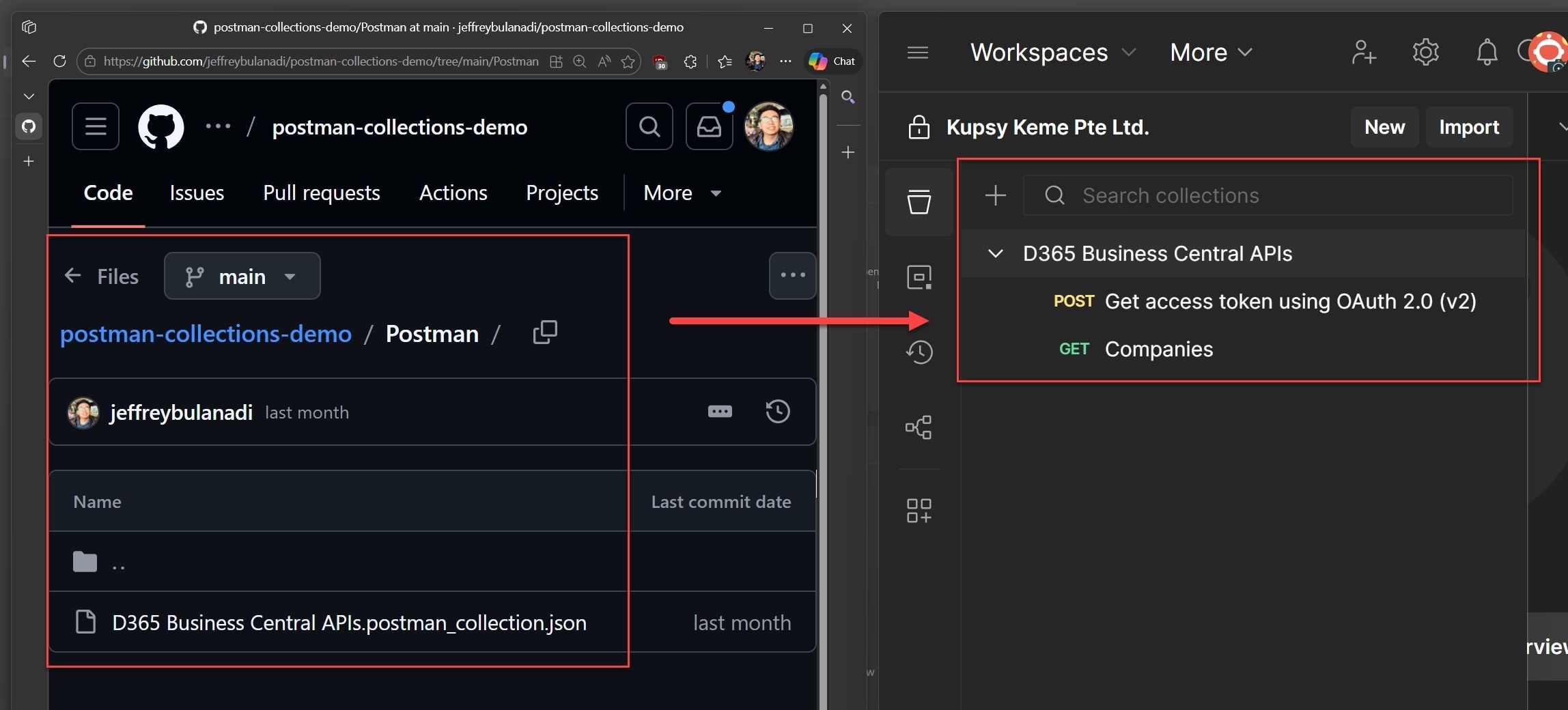
We all know Postman collections are a solid way to share and maintain API requests across a team. And if your team is already storing those collections in Azure DevOps or GitHub, there’s a pretty simple way to use them directly in Postman.
In this post, I’ll show a few ways to import Postman collections from both platforms and keep things in sync.
Before We Begin: Making a Repository “Postman-Import Ready”
Now, let’s make sure your repo actually works with Postman before we jump into the import methods.
Postman doesn’t care if your repo is on GitHub or Azure DevOps, it only cares about the file itself and whether it is accessible.
Here is what needs to be true for Postman to successfully import your collection:
Exporting a Postman Collection as a .json File
Before you can store a collection in GitHub or Azure DevOps, you first need to export it from Postman in the correct format.
This step is simple, but it’s important. Only properly exported Postman JSON files can be reliably imported later via Raw URLs.
Let’s walk through it.
Step-by-Step: Export a Collection from Postman
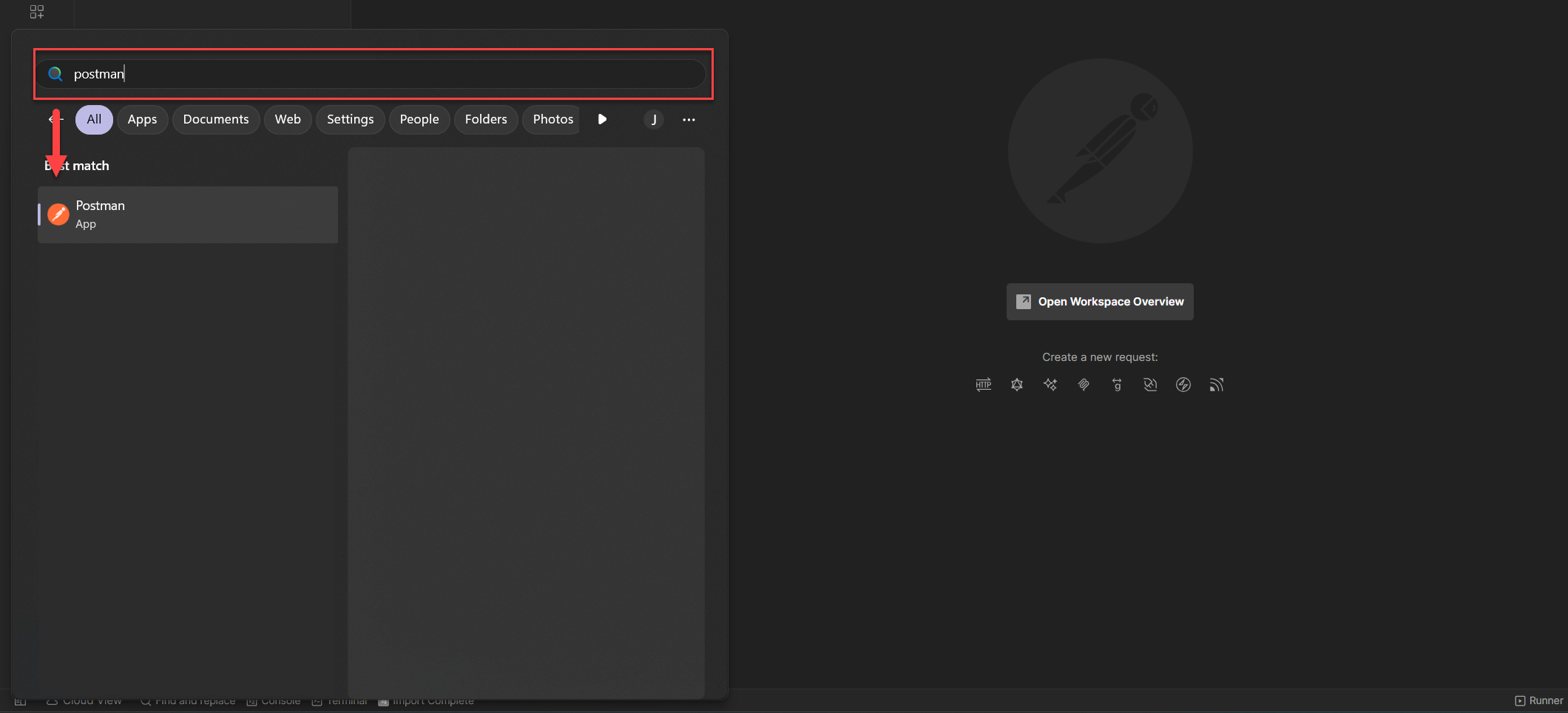
1. Open your Postman application
Launch Postman and make sure you’re signed in to the workspace that contains your collection.
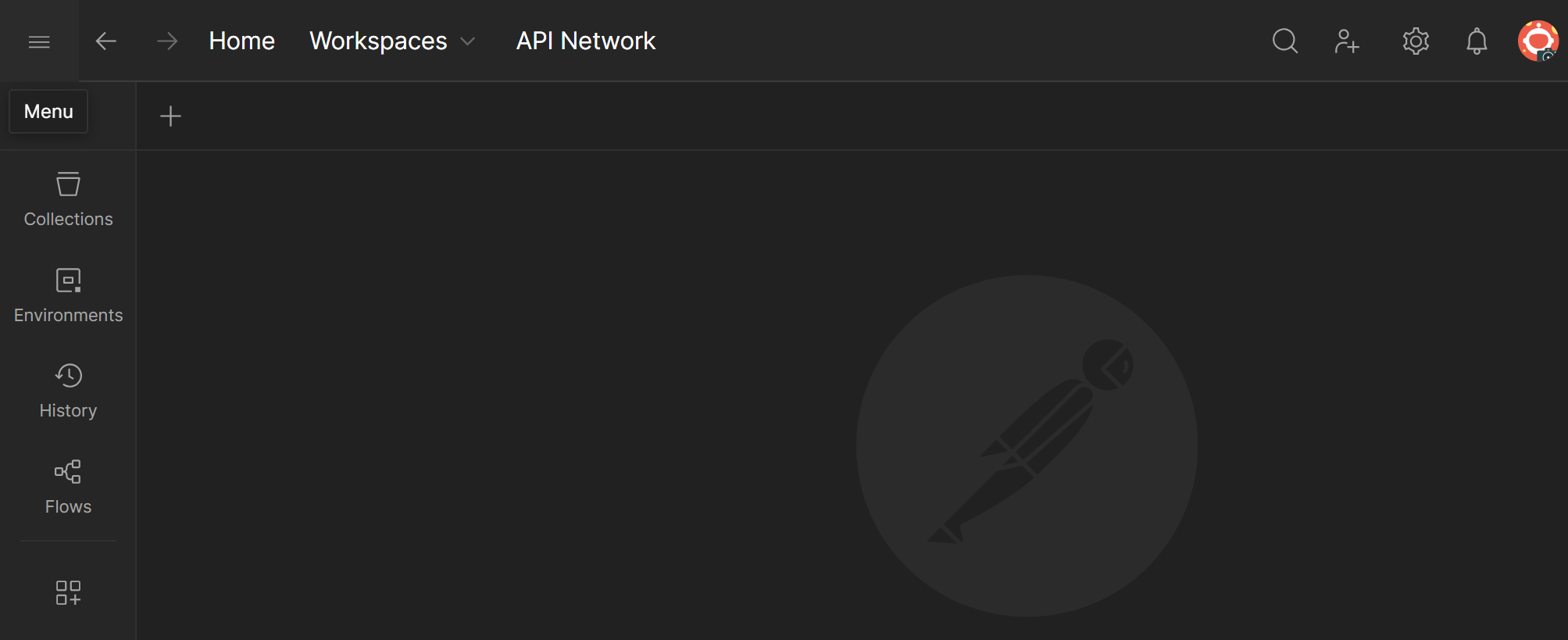
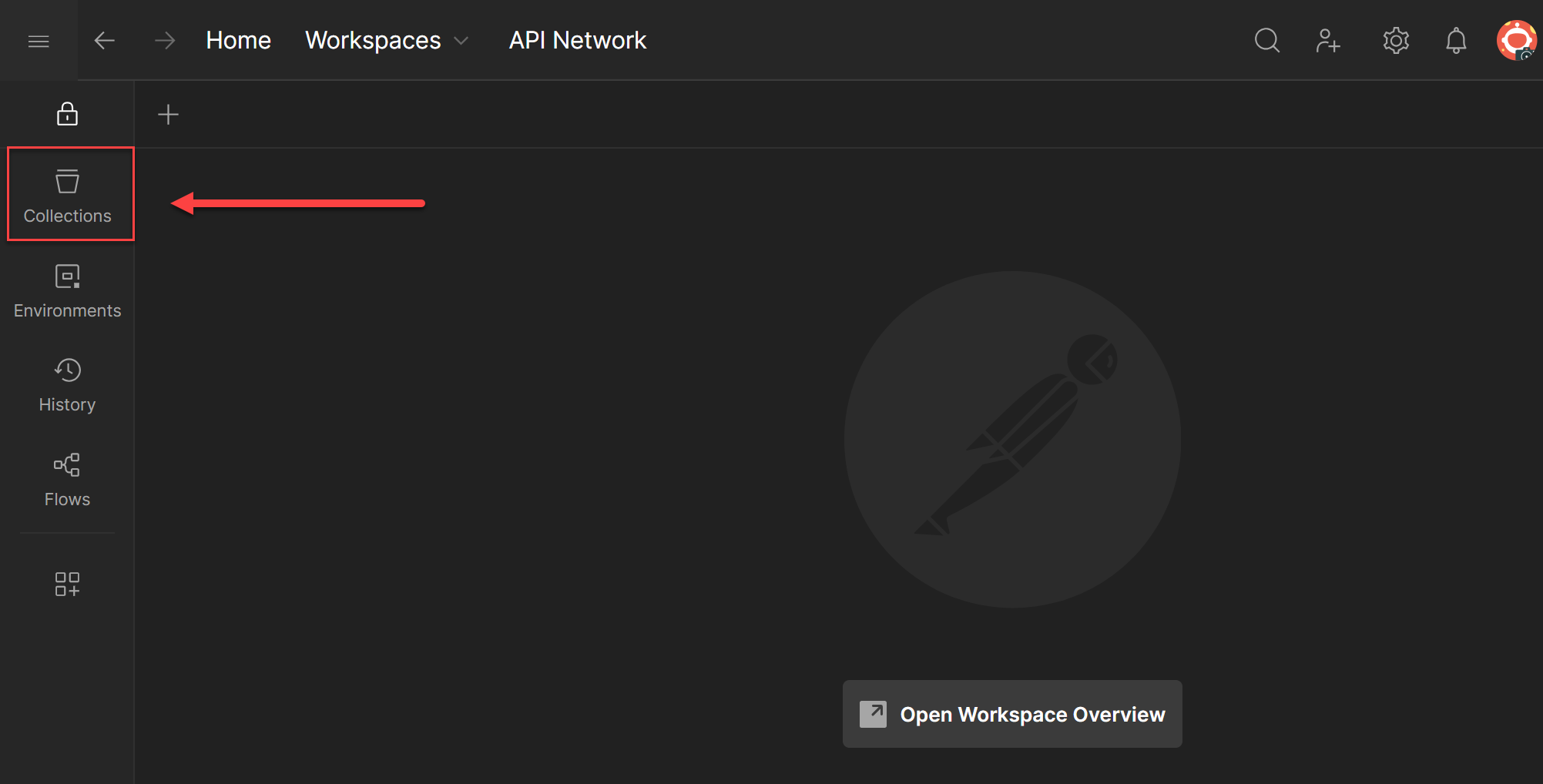
2. Open the Collections panel
On the right-side panel, click Collections to view all available collections in your workspace.
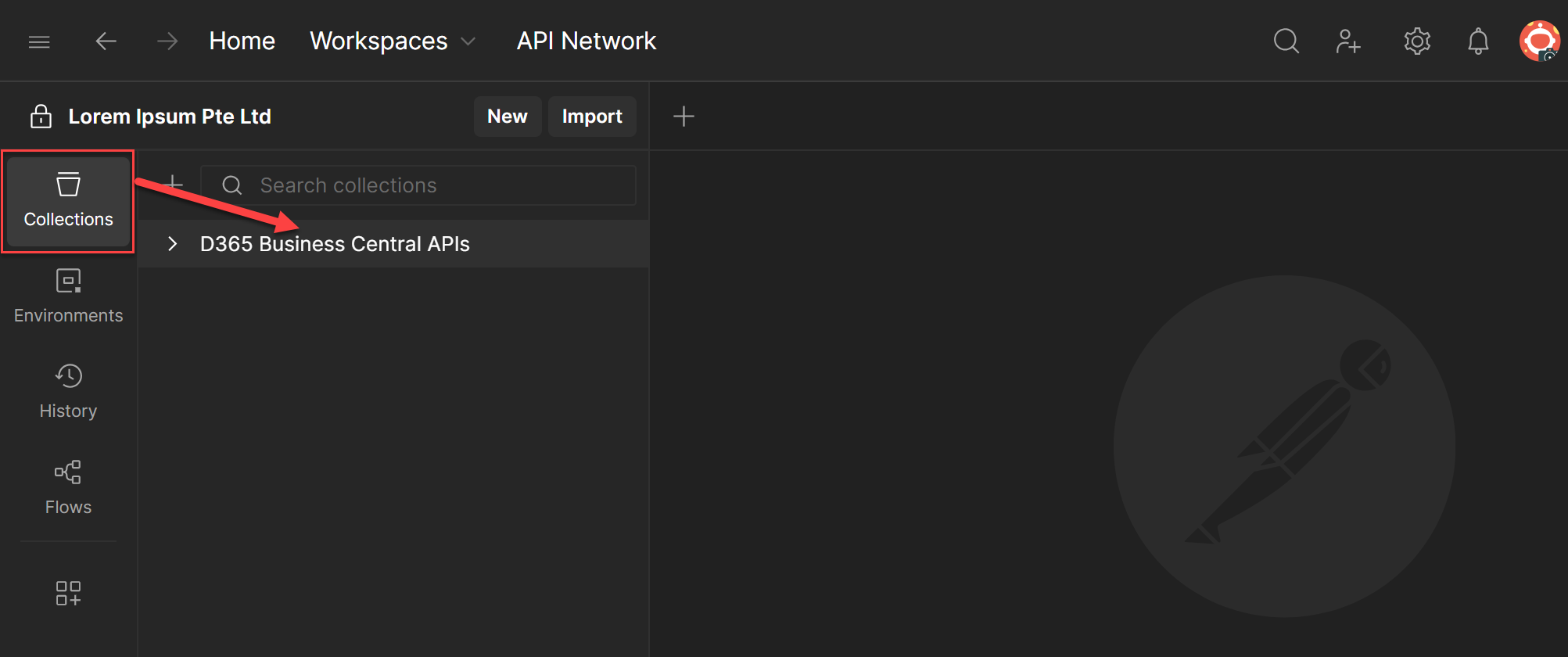
3. Select the collection you want to export
Hover over the collection name.
You’ll notice a three-dotted icon (⋯) appear, this is the “View more actions” menu.
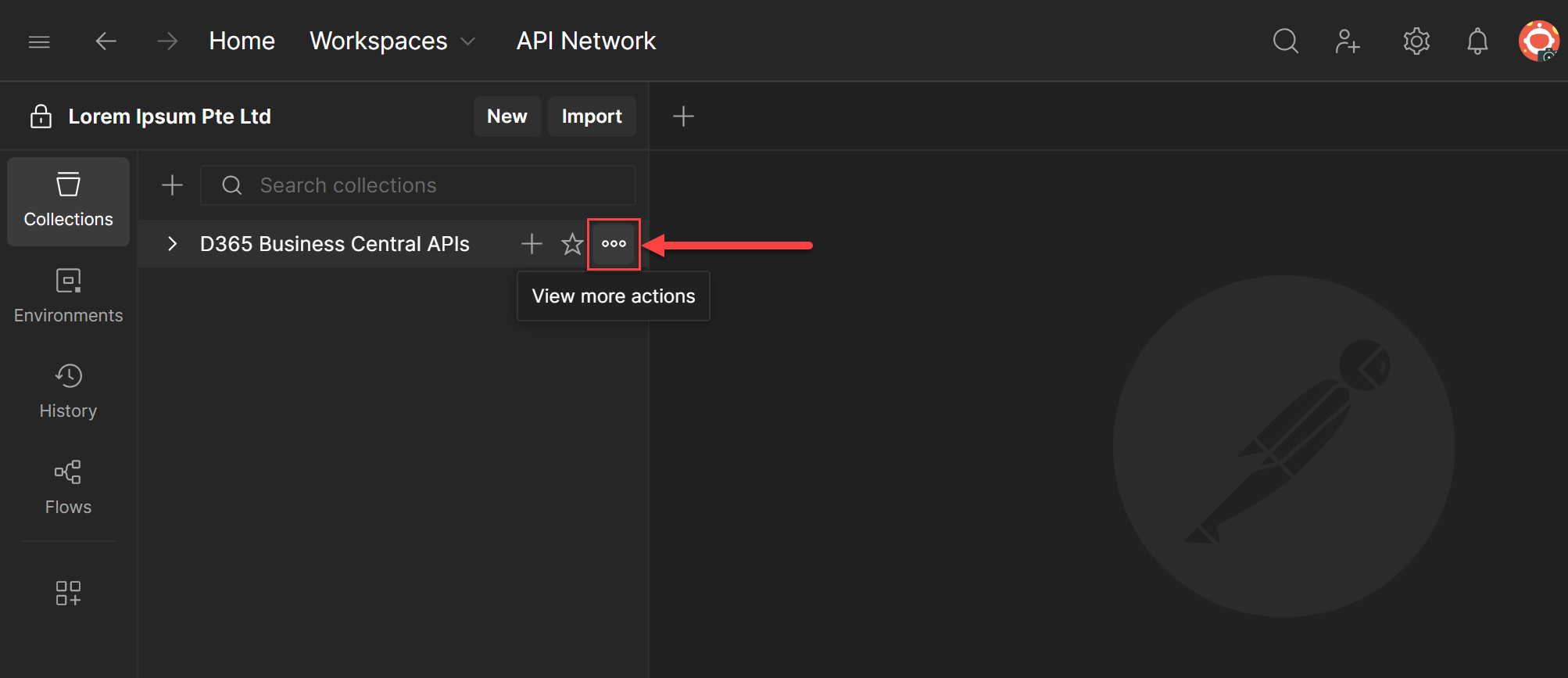
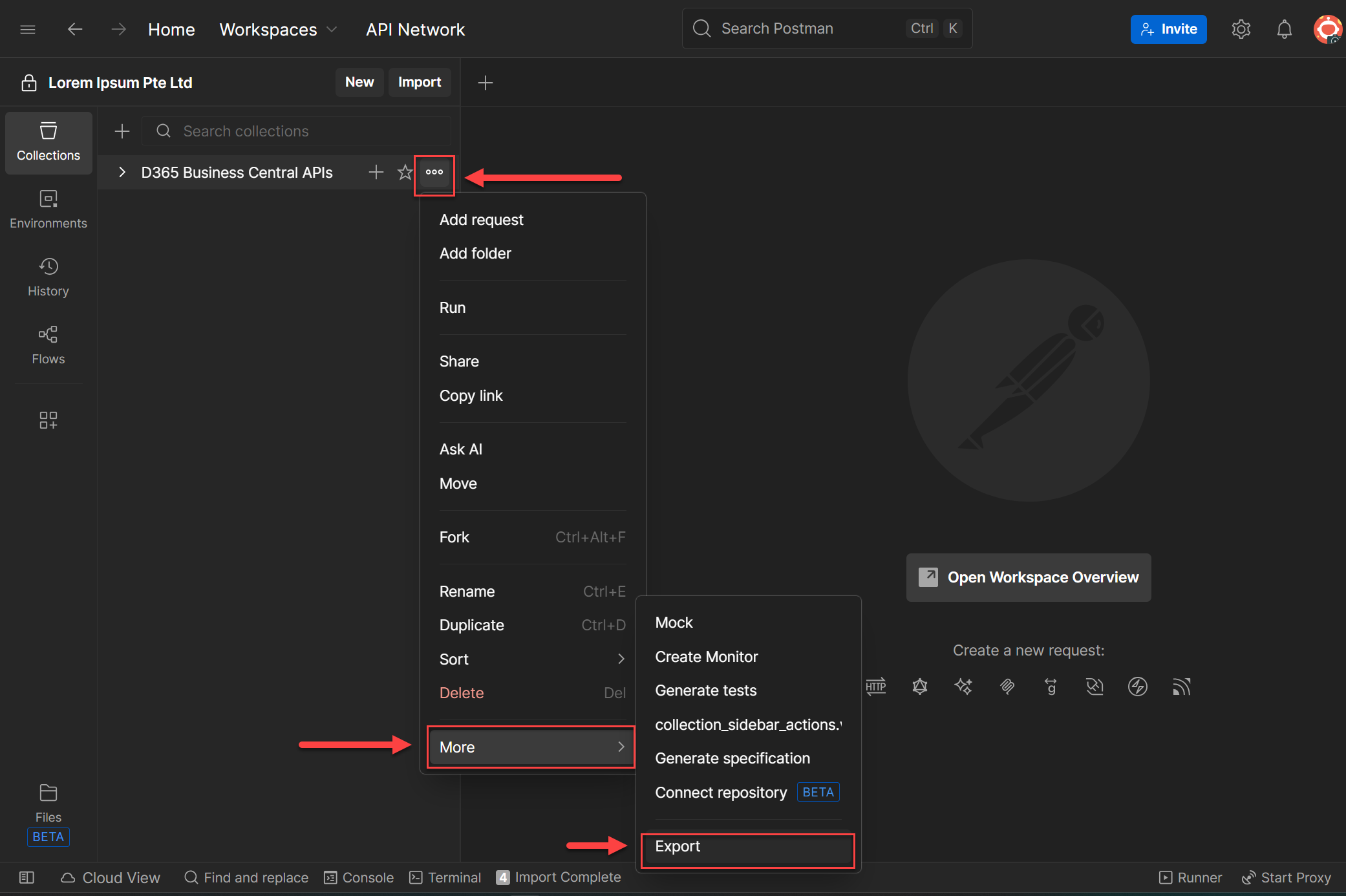
4. Open the export option
Click the three dots (⋯)
Scroll down and select More
Click Export
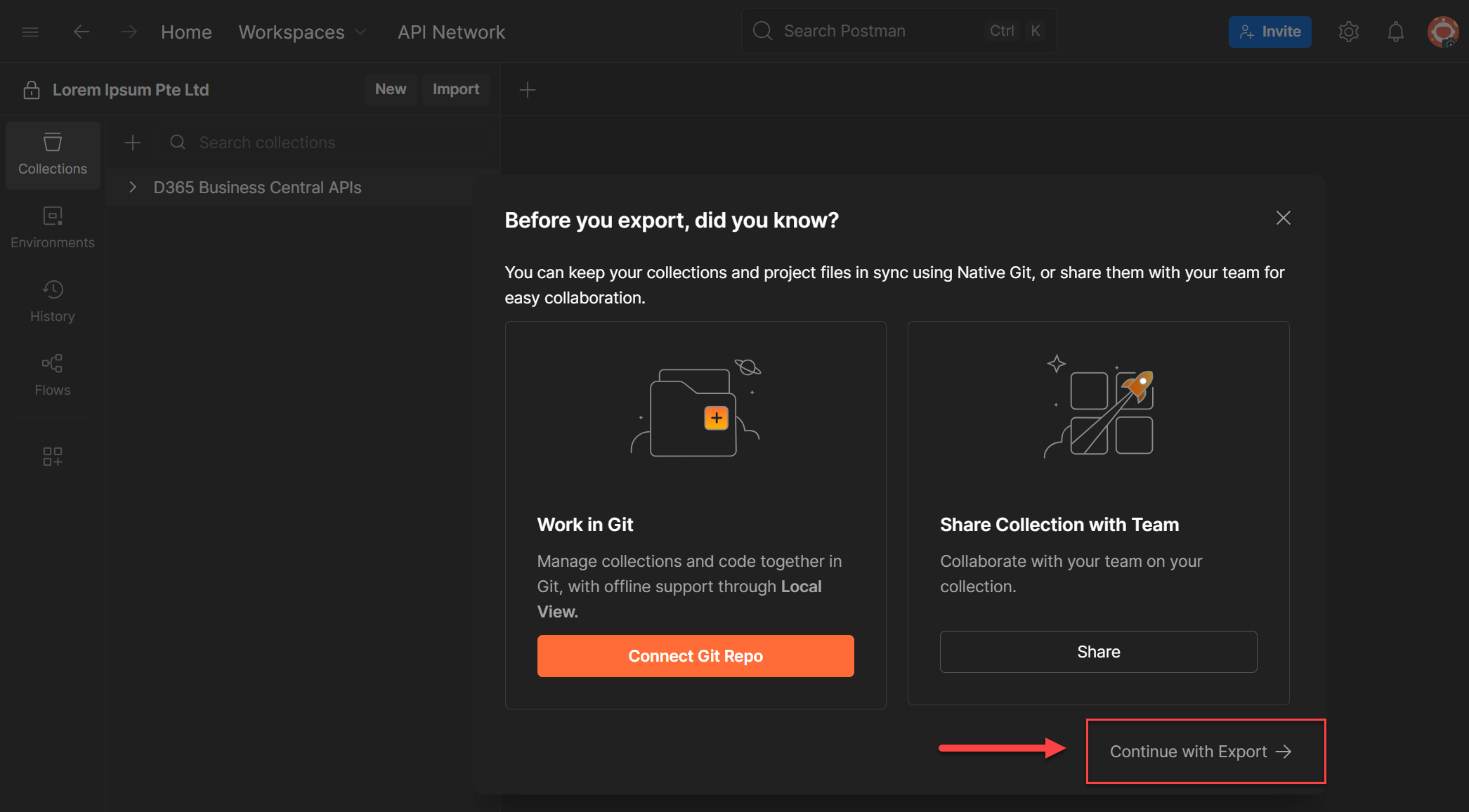
5. Confirm export
A popup will appear with multiple export options.
For now, ignore the advanced options (we’ll cover those in a separate blog)
Click Continue with Export to proceed.
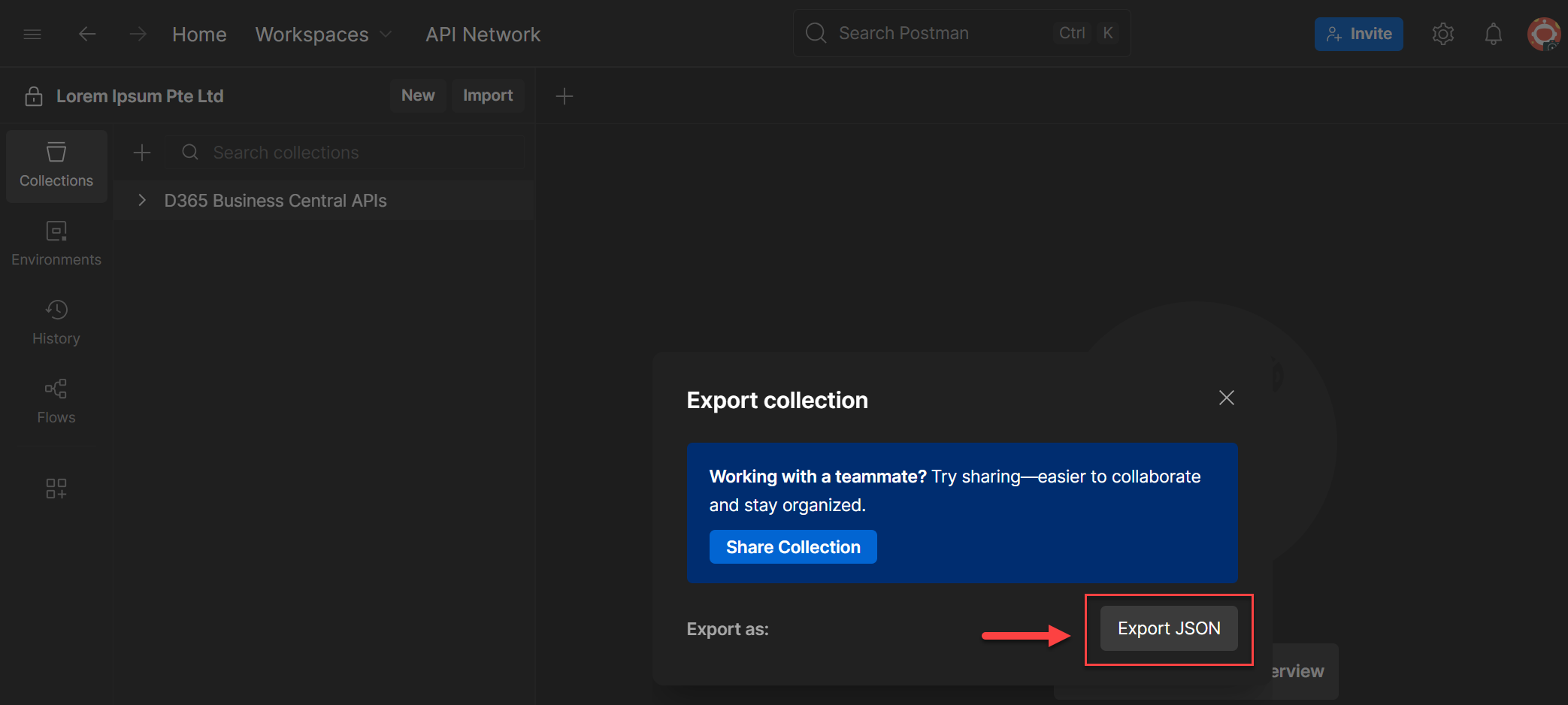
6. Choose the export format
Select Export JSON.
This generates a standard Postman collection file that works with most development tools that consume APIs, such as GitHub and Azure DevOps.
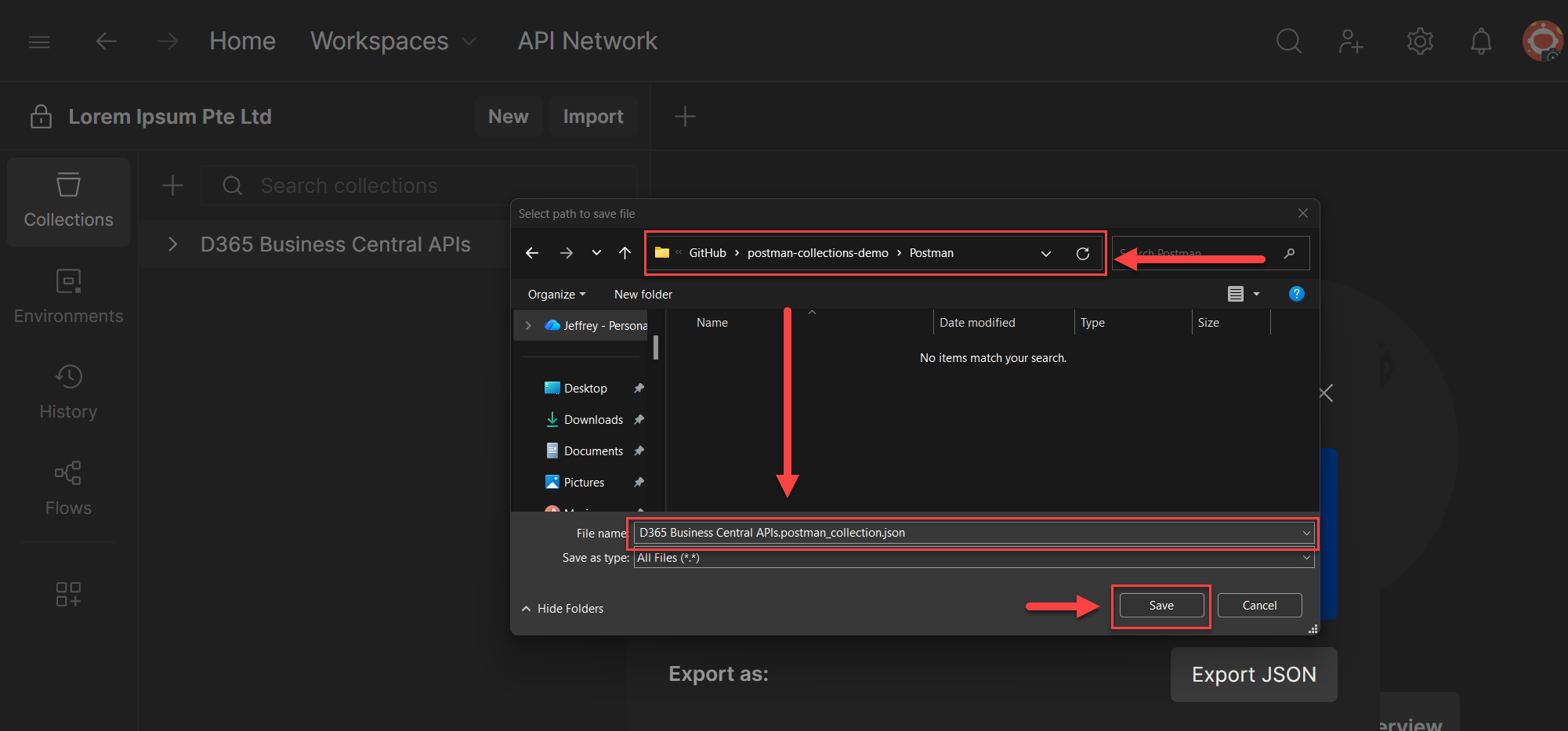
7. Save the file into your repository
When prompted to choose a location:
-
Navigate to your repository folder
-
Create a folder named Postman (if it doesn’t already exist)
-
Save the file there
Example:
repo-root/
└── postman/
    └── D365 Business Central APIs.postman_collection.json
Once you save it, your .json file is in source control, easy to share, and ready to import into Postman.
In the next section, we’ll use this exported file to import collections directly from your repository.
Import Using Raw File URL (Recommended)
This is the cleanest and fastest method.
From GitHub
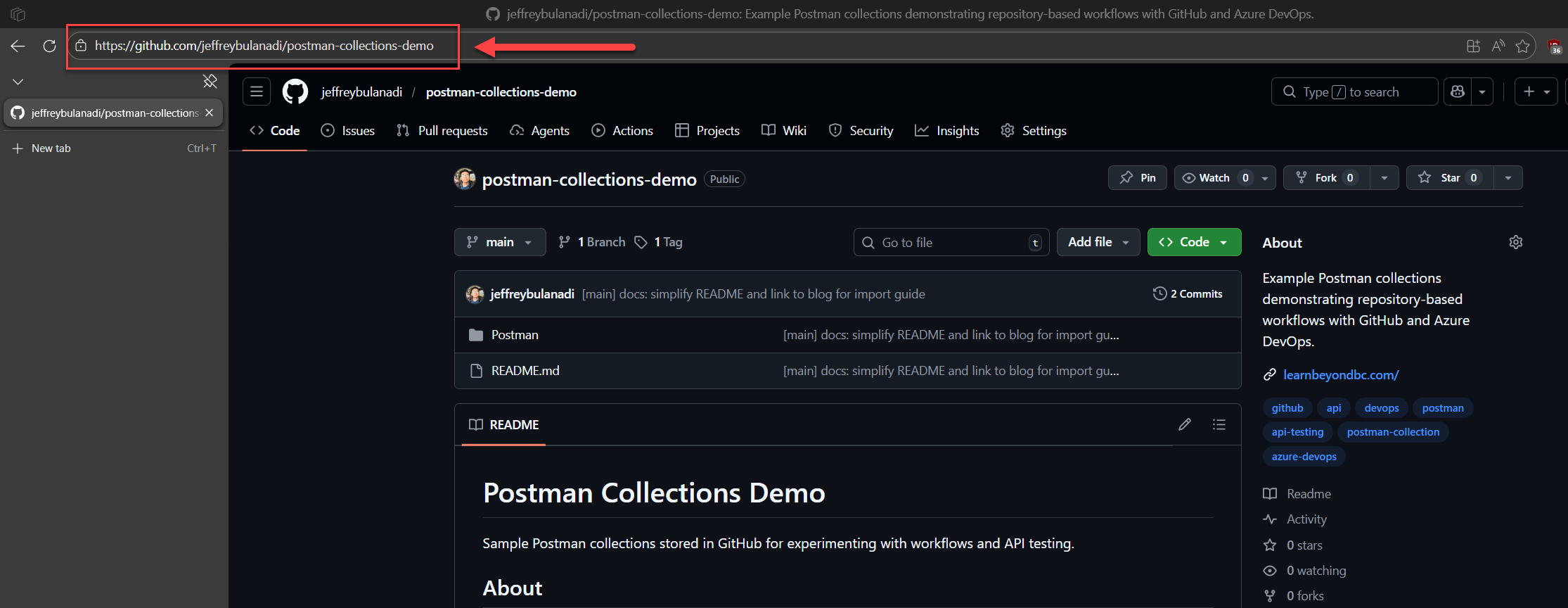
1. Open your repository
Head over to GitHub and open the repository where your Postman collection is stored.
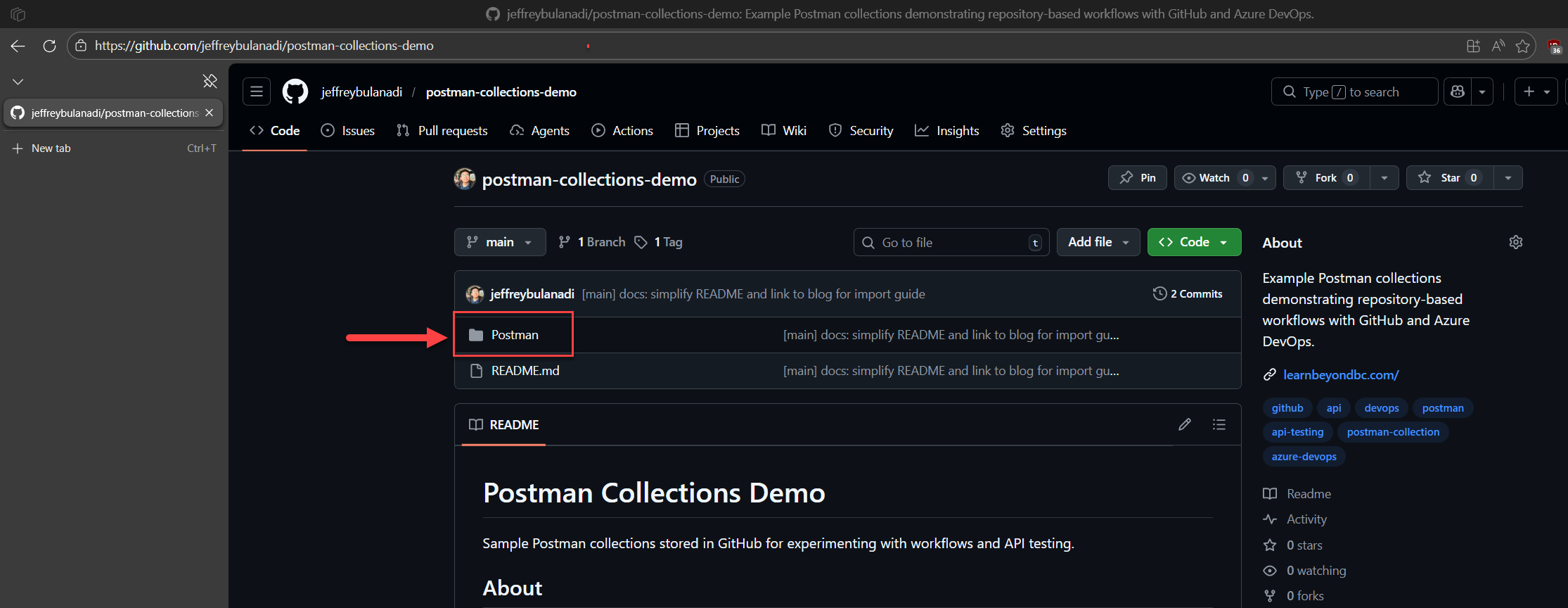
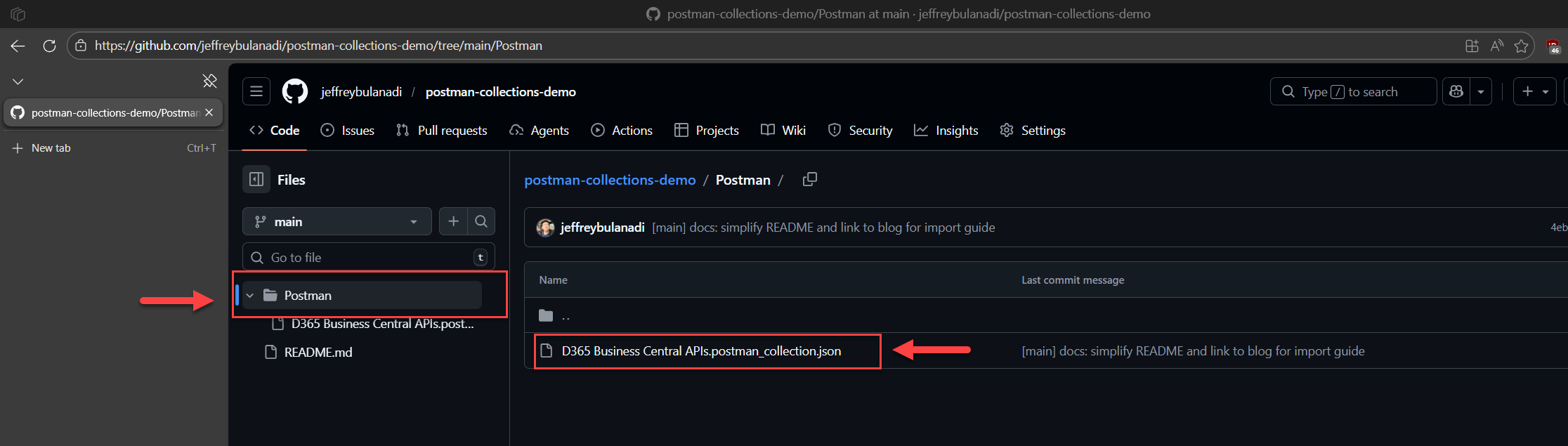
2. Navigate to your collection file .json
Browse through your repository folders until you find the exported Postman collection file (the .json you saved earlier). If you followed the structure from the previous section, it should be inside the postman/ folder.
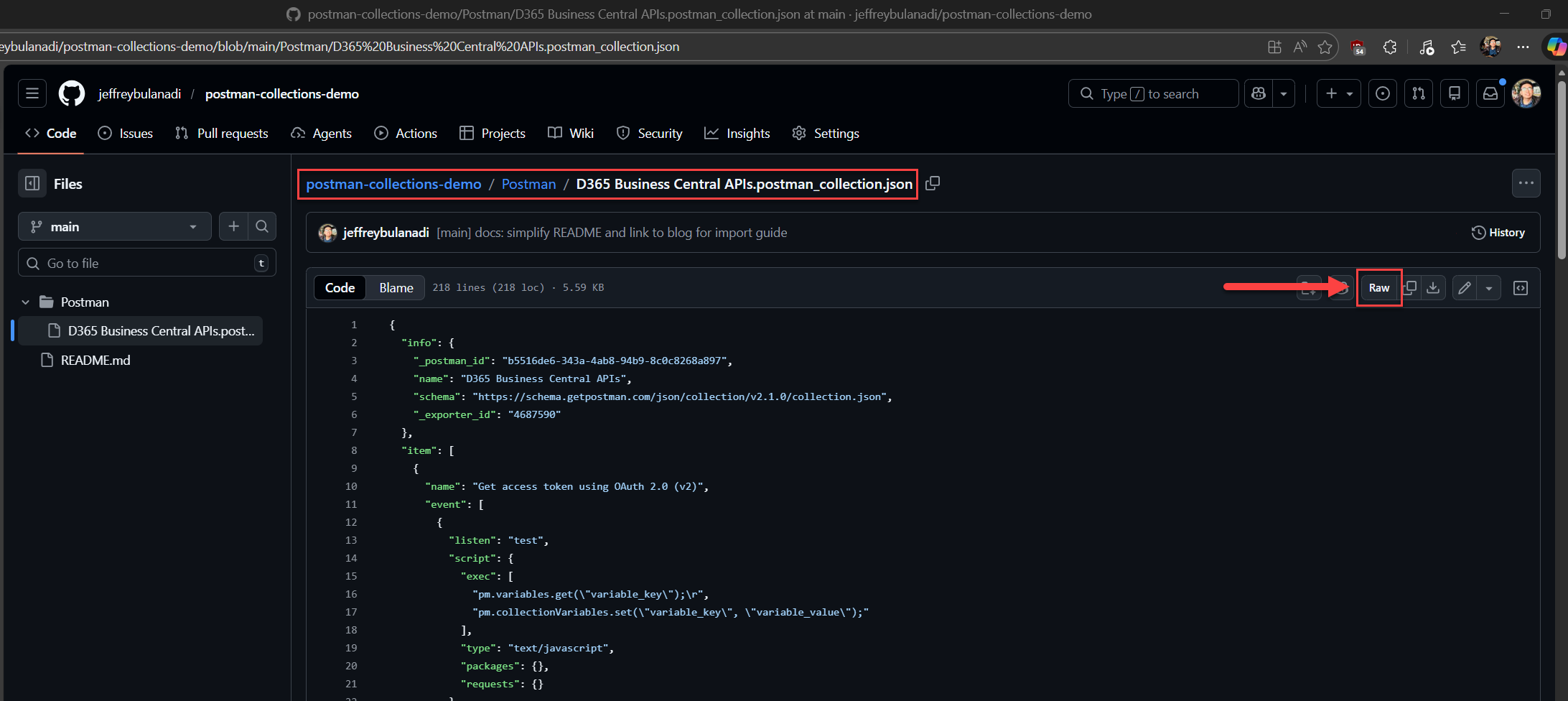
3. Click Raw
Once the file is open in GitHub's file viewer, click the Raw button at the top-right of the file content area.
This bypasses the GitHub UI and opens the plain JSON content directly in your browser, exactly what Postman needs.
4. Copy the URL from your browser's address bar
With the raw file open, grab the full URL from your browser's address bar. This is your Raw URL, hold onto it, you'll paste it into Postman in the next steps.
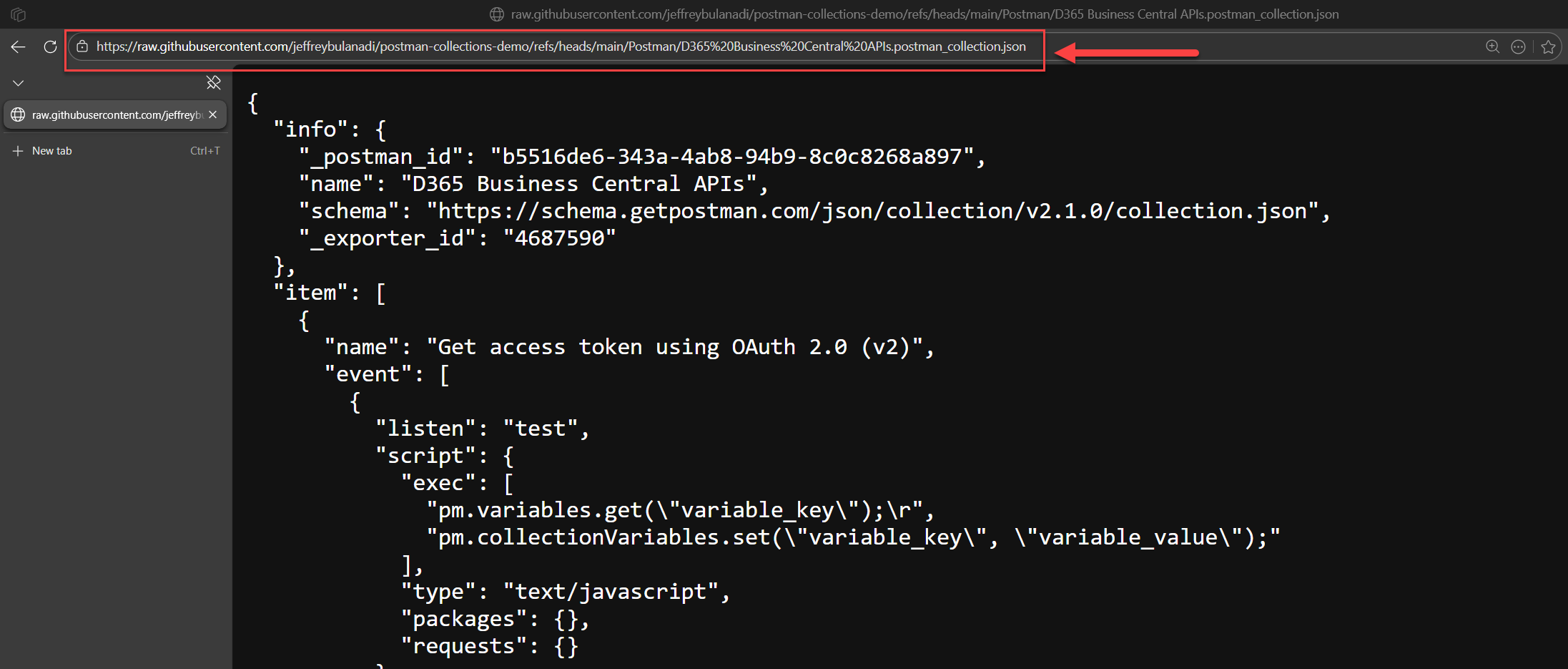
It should look something like this:
https://raw.githubusercontent.com/jeffreybulanadi/business-central-api-postman/refs/heads/main/postman/Business_Central_API_v2.0.postman_collection.json
In Postman Application
Now that you have the Raw URL, let's bring it into Postman.
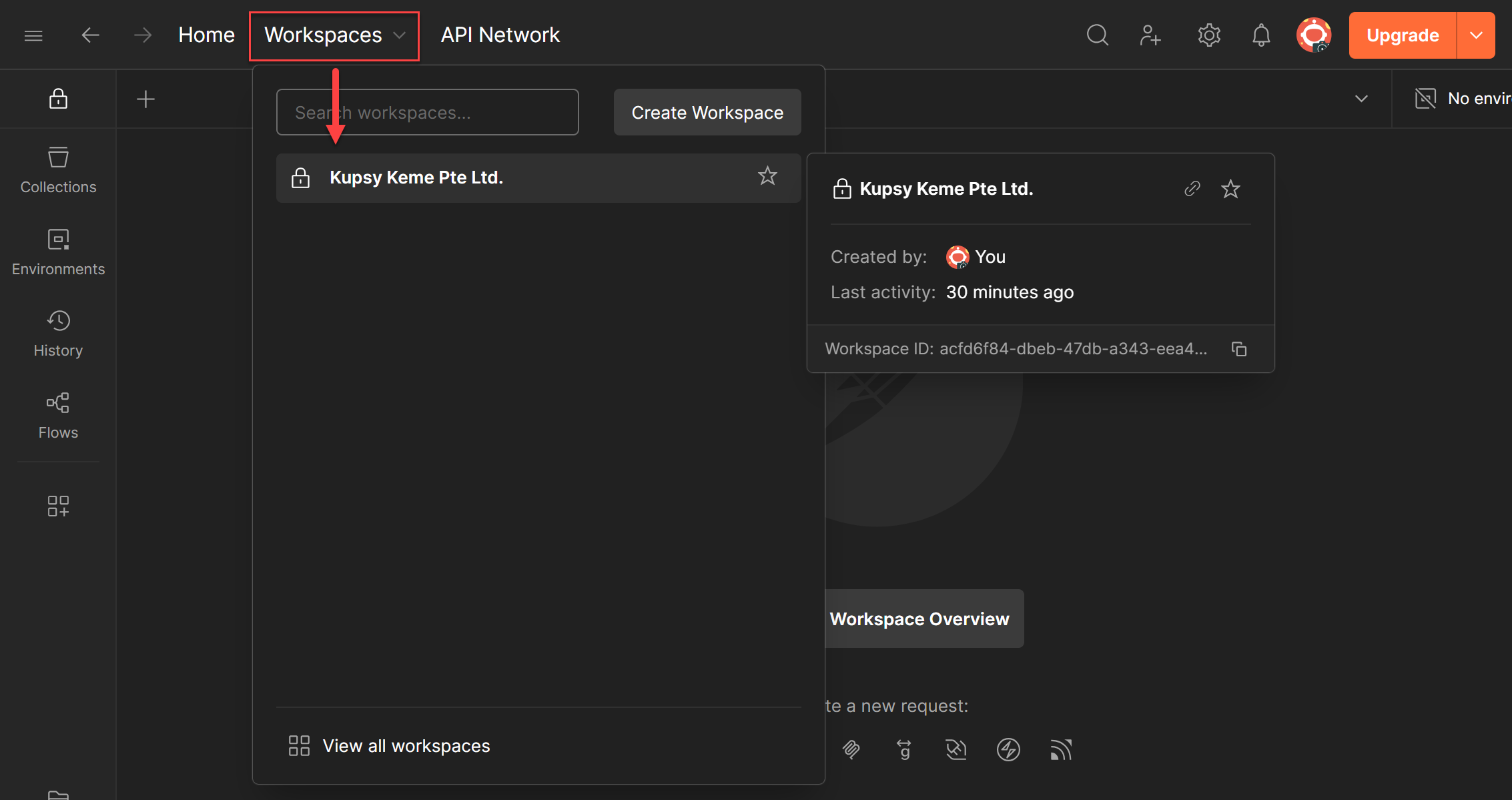
1. Open Postman
Launch Postman and make sure you are on the correct workspace.
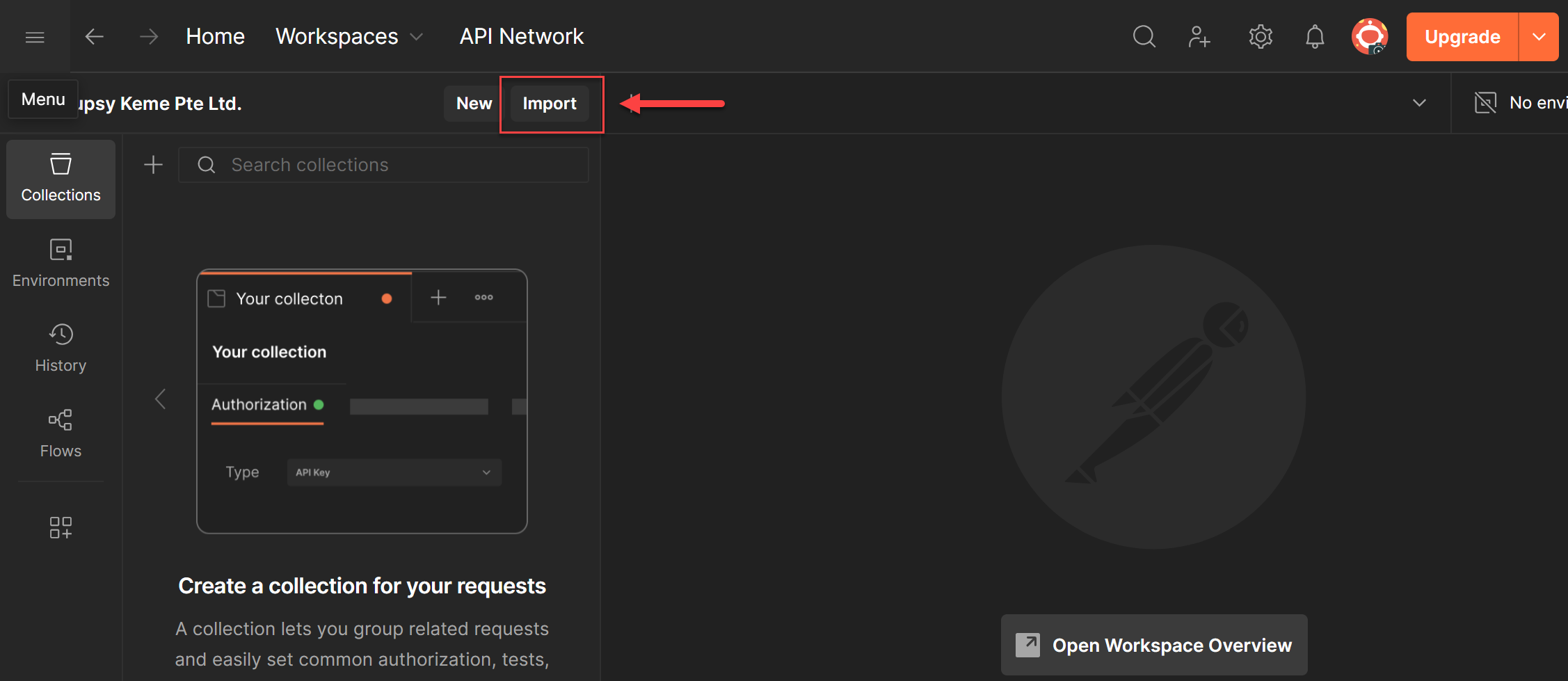
2. Click Import
On the left sidebar, you will see an Import button right next to New. Click it to open the import dialog.
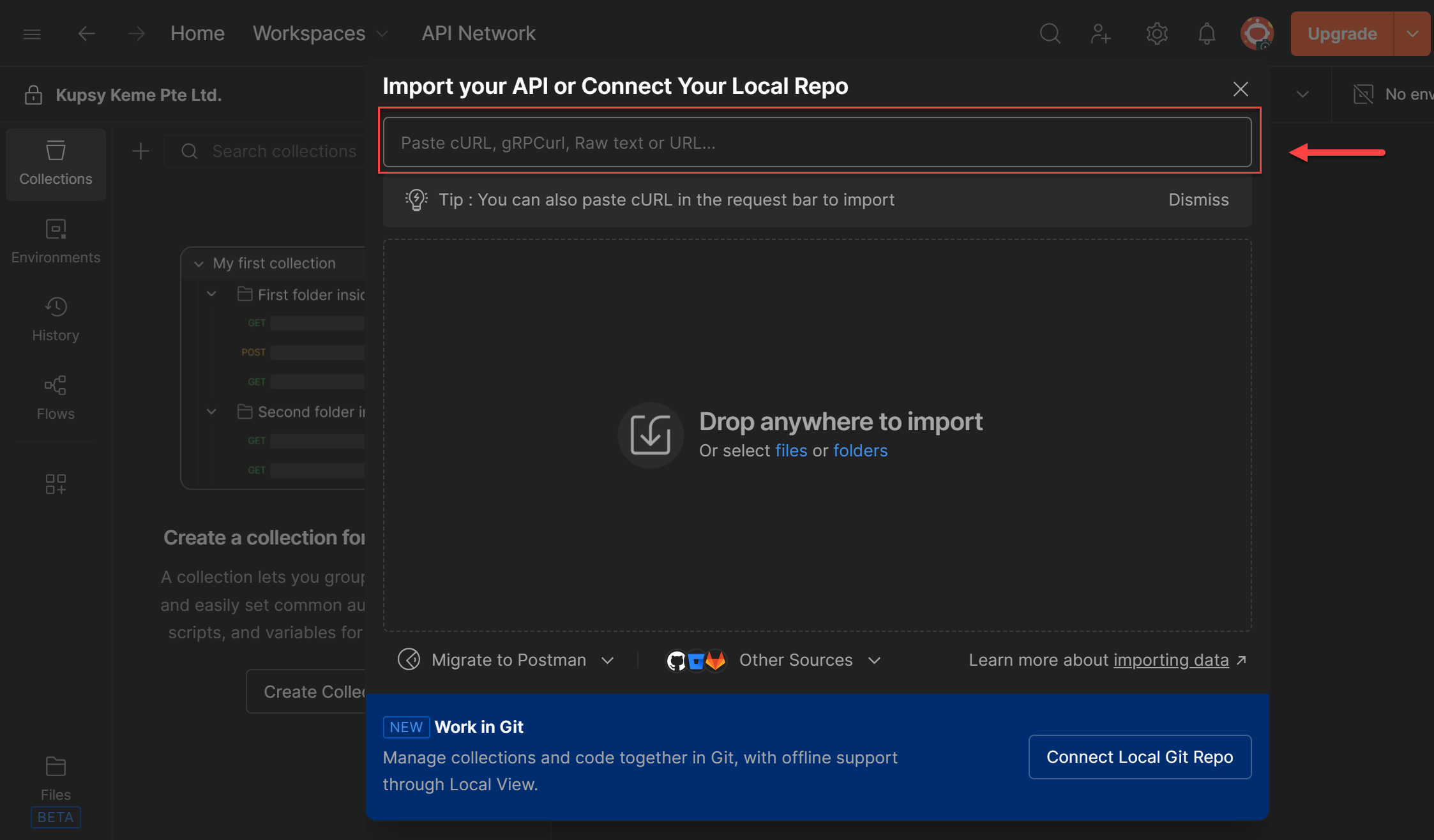
3. Paste the Raw URL into the text box
A text input will appear in the import dialog. Paste the Raw URL you copied from GitHub into that box and hit Enter.
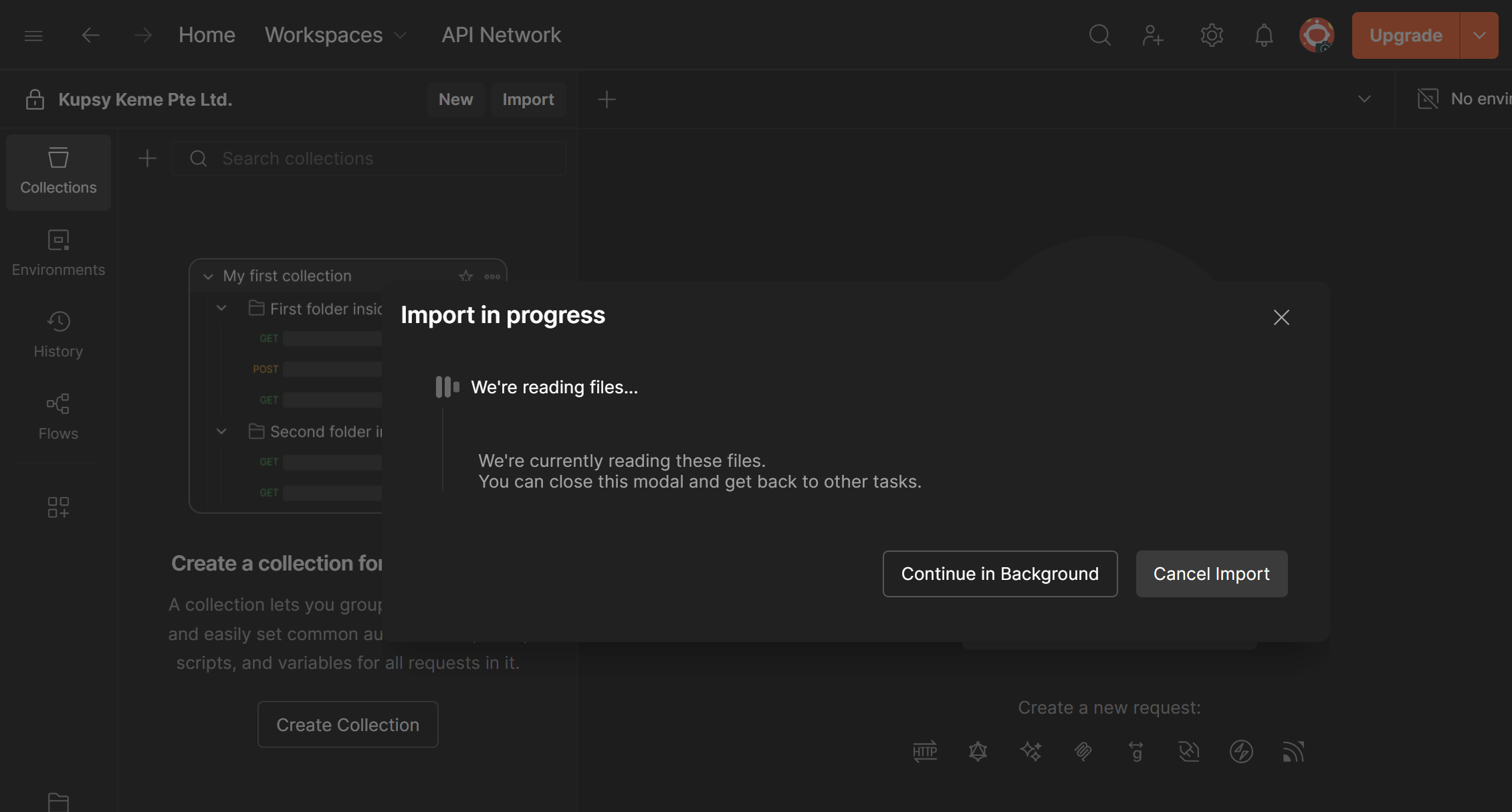
4. Postman validates and imports automatically
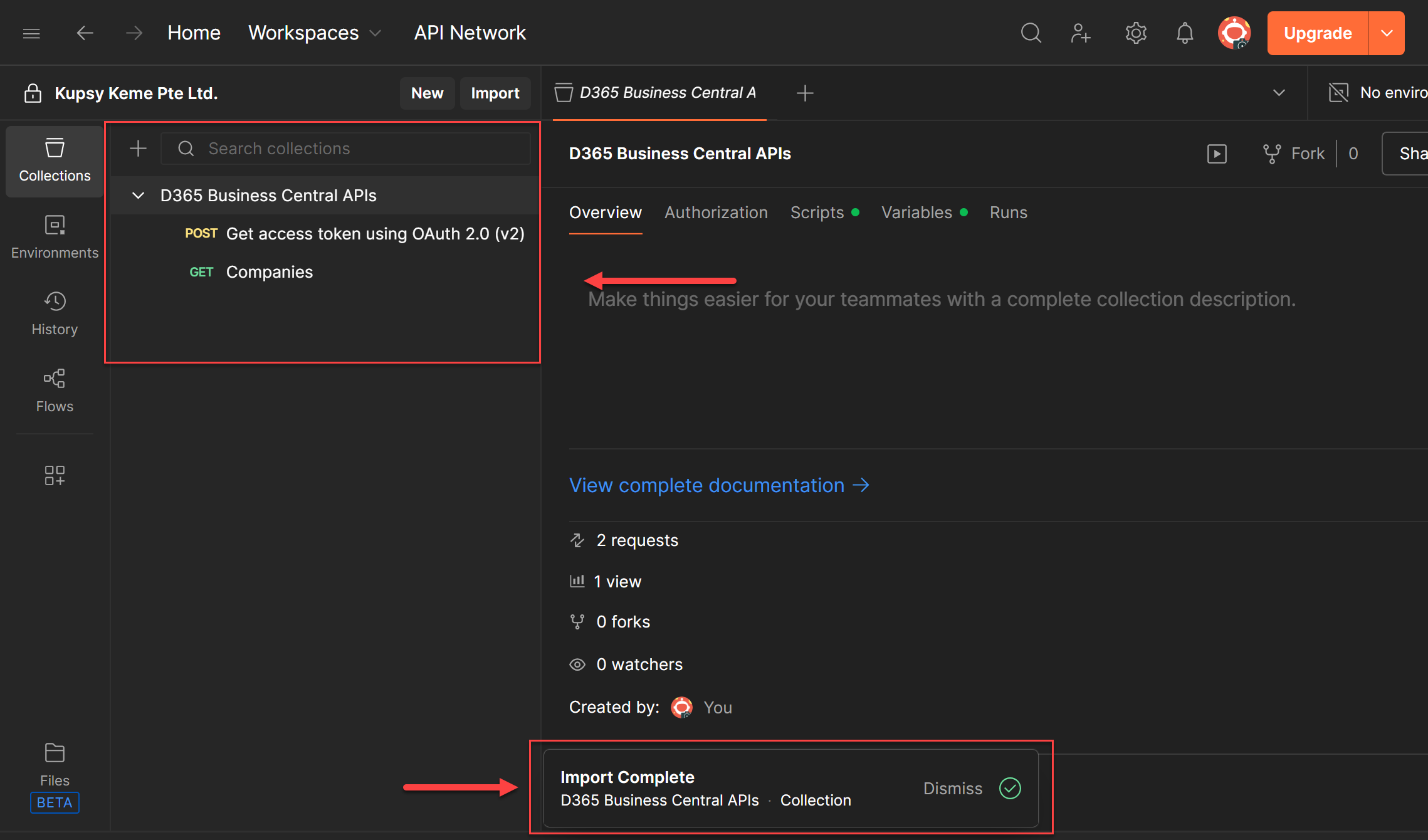
Once you hit Enter, Postman validates the URL and auto-imports the collection right away. No extra confirmation needed. You will see the collection appear in your left panel ready to use.
And that's it. Your collection is now available in Postman, ready to fire requests.
Import by Downloading File
If raw URLs are restricted or you just prefer working offline, you can always download the file directly and import it manually into Postman. It takes a bit more steps but works just as well.
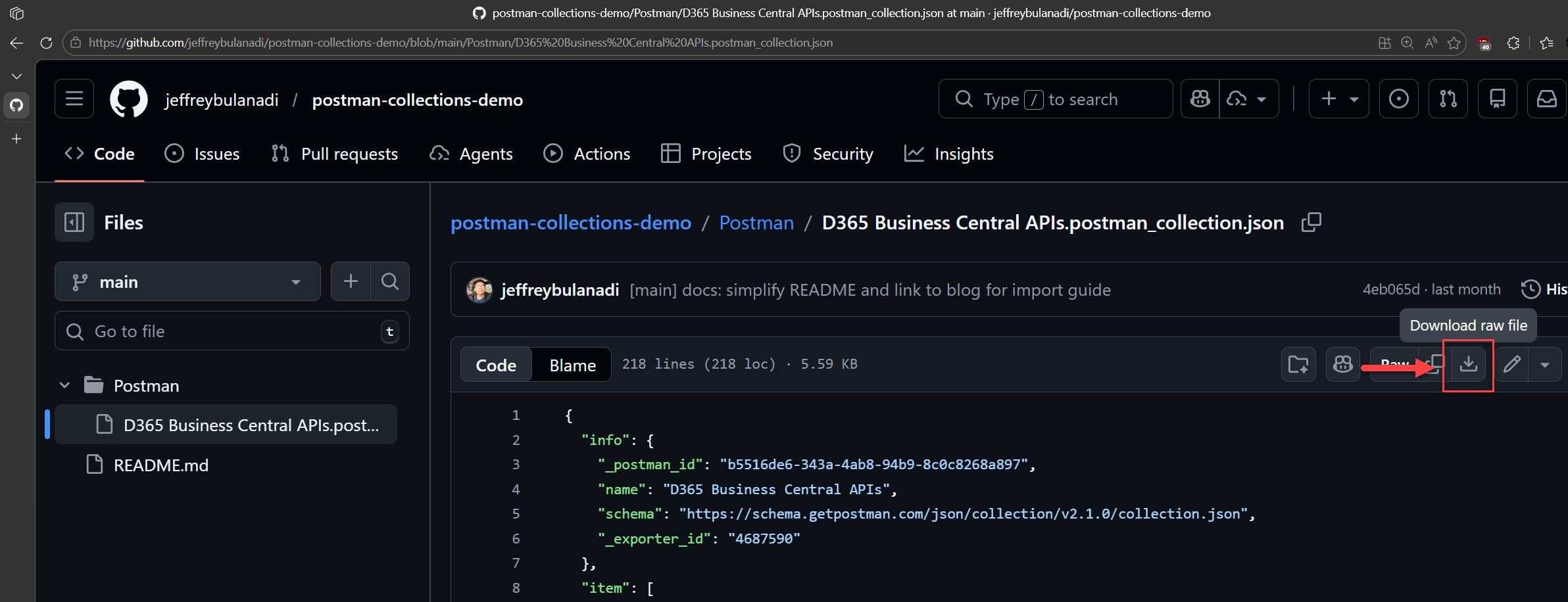
1. Download the .json file
Go to your repository on GitHub or Azure DevOps, navigate to the Postman collection file, and download it to your machine. On GitHub you can click the Download raw file icon at the top-right of the file view.
2. Open Postman
Launch Postman and make sure you are on the correct workspace where you want the collection to live.
3. Click Import
On the left sidebar, click the Import button next to New to open the import dialog.
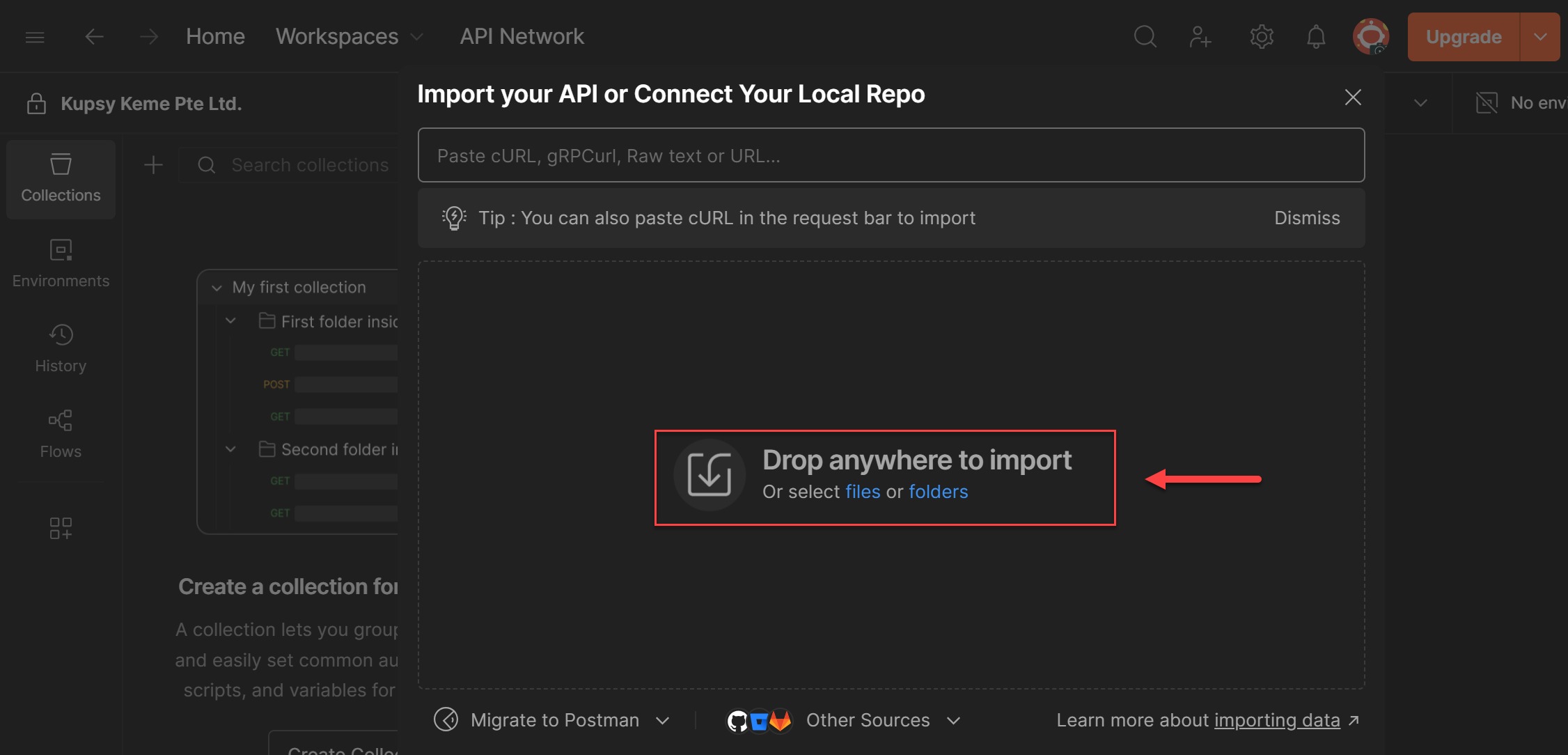
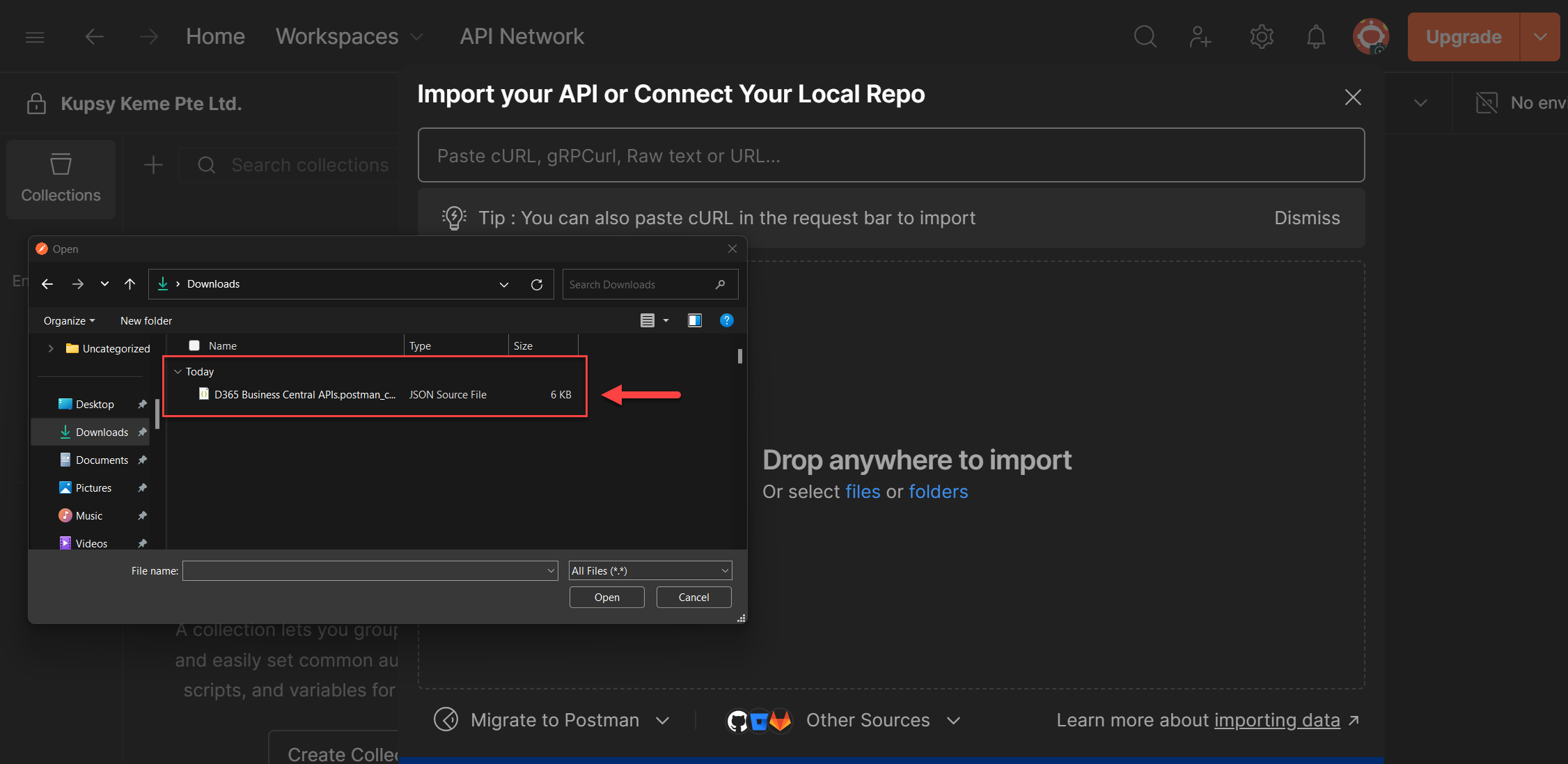
4. Drag and drop the file or browse for it
Either drag the downloaded .json file straight into the import dialog, or click select files or folders to locate it using your file picker.
5. Postman validates and imports automatically
Once the file is loaded, Postman validates it and imports the collection right away. No extra confirmation needed. You will see it show up in your left panel ready to use.
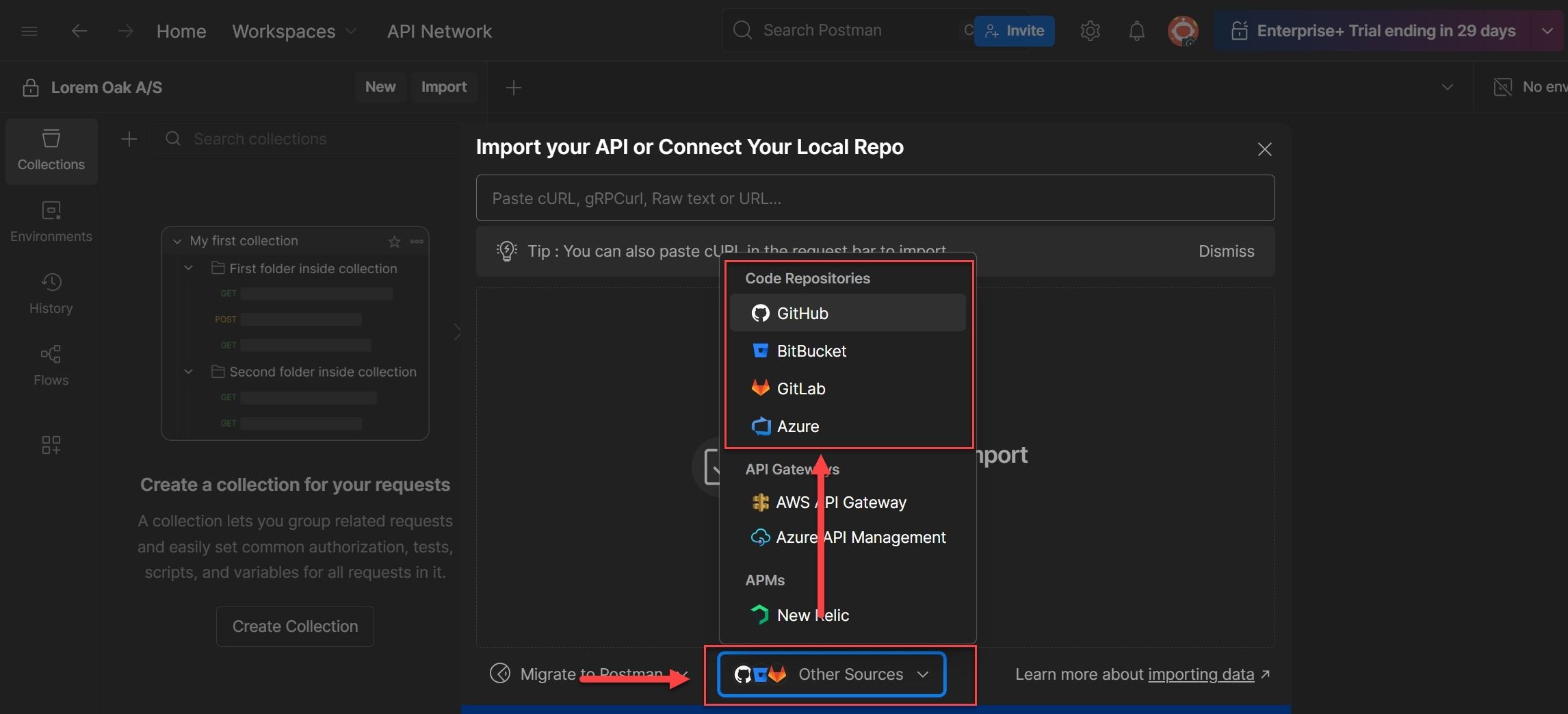
That's a wrap for Part 1. In Part 2 is now live: Learn how to connect your GitHub account to Postman and import collections directly from the app., we'll go a step further and connect Postman directly to your Azure DevOps and GitHub repositories. Stay tuned.
✨ Part 2 is now live: Learn how to connect your GitHub account to Postman and import collections directly from the app. View blog
Support
Found this helpful? Repost to support the community and follow Jeffrey Bulanadi for clear, technical insights above and beyond Business Central and AL development.
Helpful References
Importing and Exporting Data in Postman | Postman Learning Center
About READMEs - GitHub Docs
Join the Conversation
Share your thoughts, ask questions, or discuss this article with the community. All comments are moderated to ensure quality discussions.
No comments yet
Be the first to start the conversation!
0 Comments
Leave a Comment